Inspect the saved evidence behind an answer. Simulated model and source data.Open full preview ↗
Made for your Mac
A local workspace, always close by
More than one perspective
Compare up to four models
Your history stays local
No Cove account or cloud sync
Local models
Useful models. Right here on your Mac.
Install small models in On this Mac > Discover, then use them offline. Integrated downloads are separate from explore-only candidates.
Chat and search locally.
Choose Qwen2.5 0.5B or Qwen3 0.6B Abliterated for experimental local chat. Install BGE, select documents, inspect original sections, and attach chosen results. Only on this Mac prevents remote chat and Web research.
Optional local chatSelected-document searchVisible destinations
Listen in English or Chinese.
Choose from five local speech bundles, save voice and speed preferences, and read an answer or selected passage. Pause, stop, or export a WAV. Debate can read new participant turns sequentially.
Five speech bundlesVoice preferencesExplicit audio export
Projects keep reusable instructions and materials, with Always include or Search when needed controls. Downloads verify pinned sizes and SHA-256 hashes. Installation needs internet; installed inference and speech have no cloud fallback. Local models require Apple Silicon and macOS 13.3+, plus space for downloaded weights, runtimes, and working memory. Model catalog ↗ · Speech guide ↗
Optional Web research
Find sources. Keep the evidence.
Turn on the globe when you want a compatible model to search. Or read a public webpage yourself and preview the extracted text before sending.
Search on your terms.
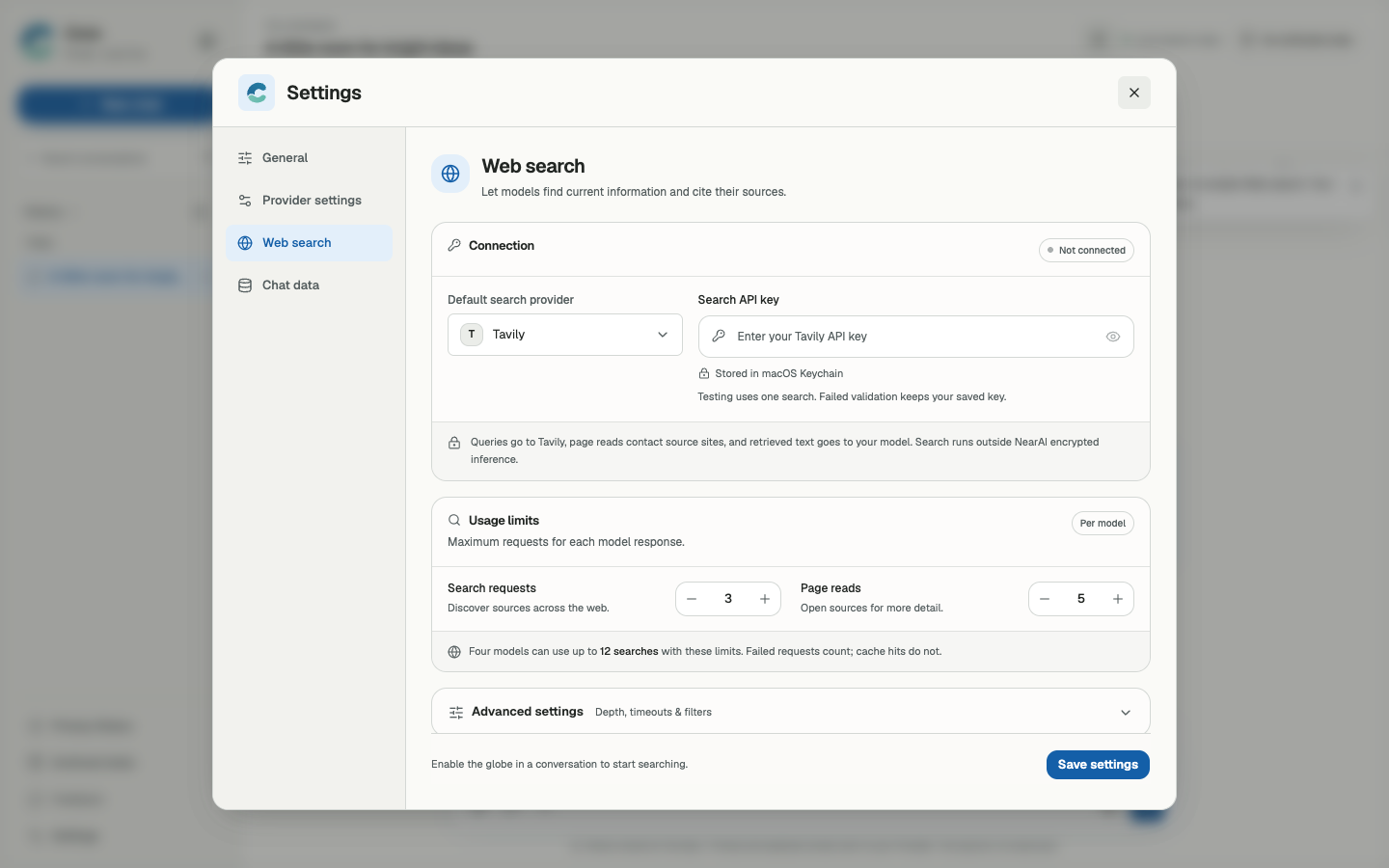
Connect Tavily, Linkup, or Exa independently of your model provider. New conversations start with Web search off. Set search and page-read limits for each model response; search keys stay in macOS Keychain.
Open inline citations and References at saved source sections. Search excerpts remain distinct from full page reads, and saved evidence follows retries, branches, and exports. A citation identifies evidence; it does not verify a claim.
Queries go to the selected search service, page reads contact source websites, and retrieved text goes to your model. These requests happen outside NearAI encrypted inference. Four models can make up to twelve search requests with defaults; provider credit usage varies, so request limits are not spending caps. Continuous Debate does not inherit the search toggle. Read the research guide ↗
Continuous debates
Make room for disagreement.
Give two to four models a question and ground rules. Follow cited stage summaries and keep an eye on usage as the discussion develops.
A discussion you can steer.
Begin with independent positions, follow rotating turns, and add an intervention for the next round. Pause, step through a turn, resume, or stop permanently. Checkpoints cite participants' positions without declaring an automatic winner.
2–4 model seatsRound-based interventionsSaved transcripts
Give the debate your attention.
Compact Focus puts the transcript at the center. Stage summaries link new ideas, position changes, and open questions to original turns. Your reading position and draft stay with you when you switch views.
Compact FocusCited summariesReading anchors
Track cumulative reported tokens and optional cost estimates, set a turn interval, and choose budget reminders or explicit automatic pause. Summary calls also incur usage. Budgets are not Provider-side spending caps; active calls can exceed a threshold. NearAI participation needs the debate page open for encryption and verification; service-driven models can continue with the browser closed. Read the Debate guide ↗
A little perspective goes a long way
One question. A few good directions.
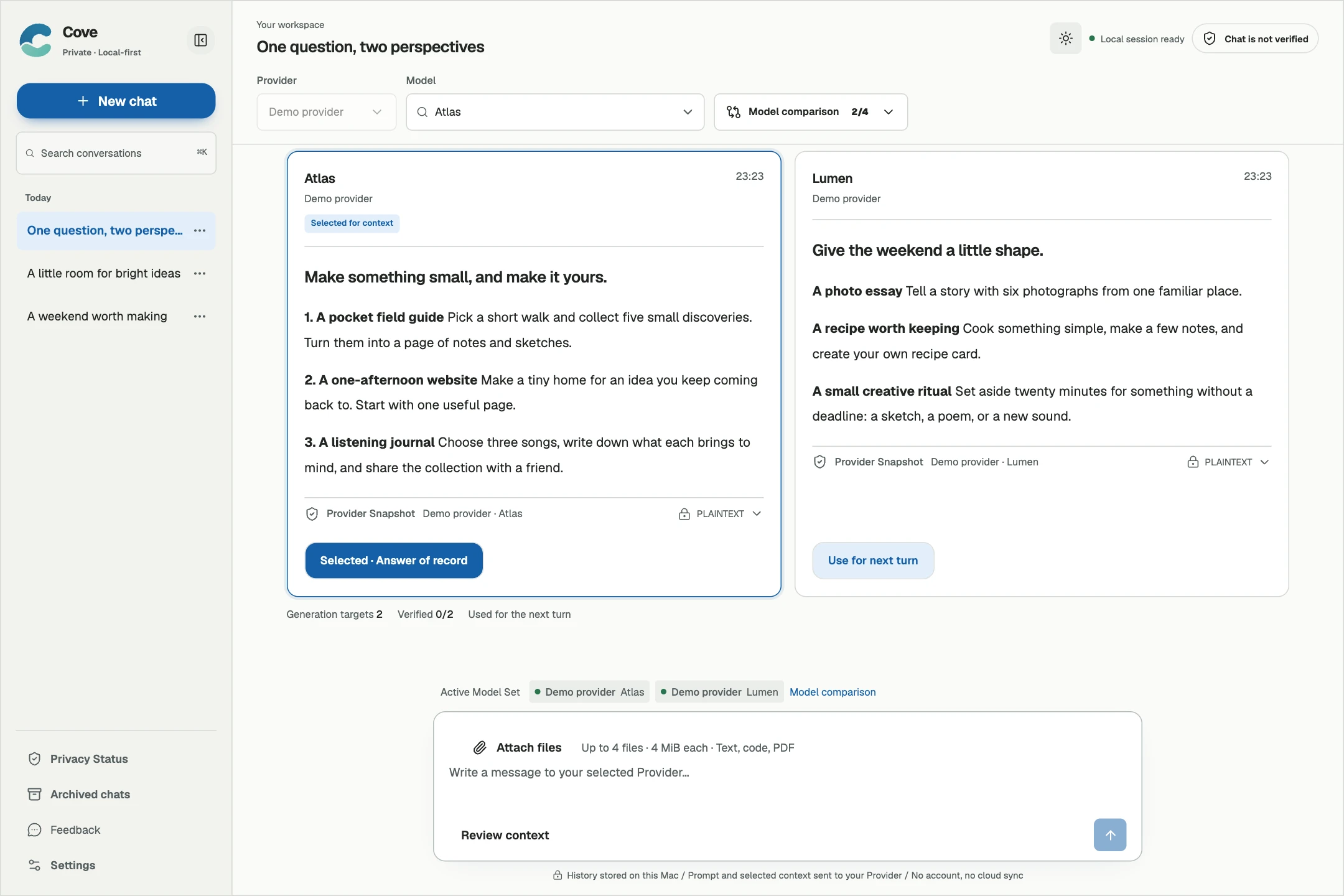
Different models bring different ideas. Send a prompt to up to four models, read their answers side by side, and choose where to go next.
Explore a passage in a separate conversation, work on a draft, and read equations without leaving your workspace.
From a reply to a working draft.
Ask about selected text in a separate local conversation. Open an answer in the workbench, edit with undo and preview, request a revision, then review changes before applying them. Download important drafts as Markdown.
Side conversationsReviewed revisionsWindow-local drafts
More clarity while you read.
Read Provider-declared reasoning separately from the final answer. Reasoning folds after streaming, and equations render with local fonts. Long formulas stay inside comparison cards; reading anchors preserve your place while following is paused.
Local equationsResponse detailsStable reading
Choose a model with more context.
See Provider-advertised context limits, prices, and capabilities alongside local brand icons. Narrow the catalog with filters, keep favorites close, and save model combinations for later.
Model detailsFavorites & filtersSaved combinations
See what was recorded.
One Response details panel brings together observed timings, reported tokens, original Provider information, and available verification reports. Optional cost estimates use rates you enter; missing measurements stay unavailable.
Model selection adds brand icons, advertised details, favorites, filters, and saved combinations. Editing a saved prompt creates an independent branch. Drafts stay in window memory; model requests go to your chosen Provider.
Find it again
Find the conversation. Keep your next thought.
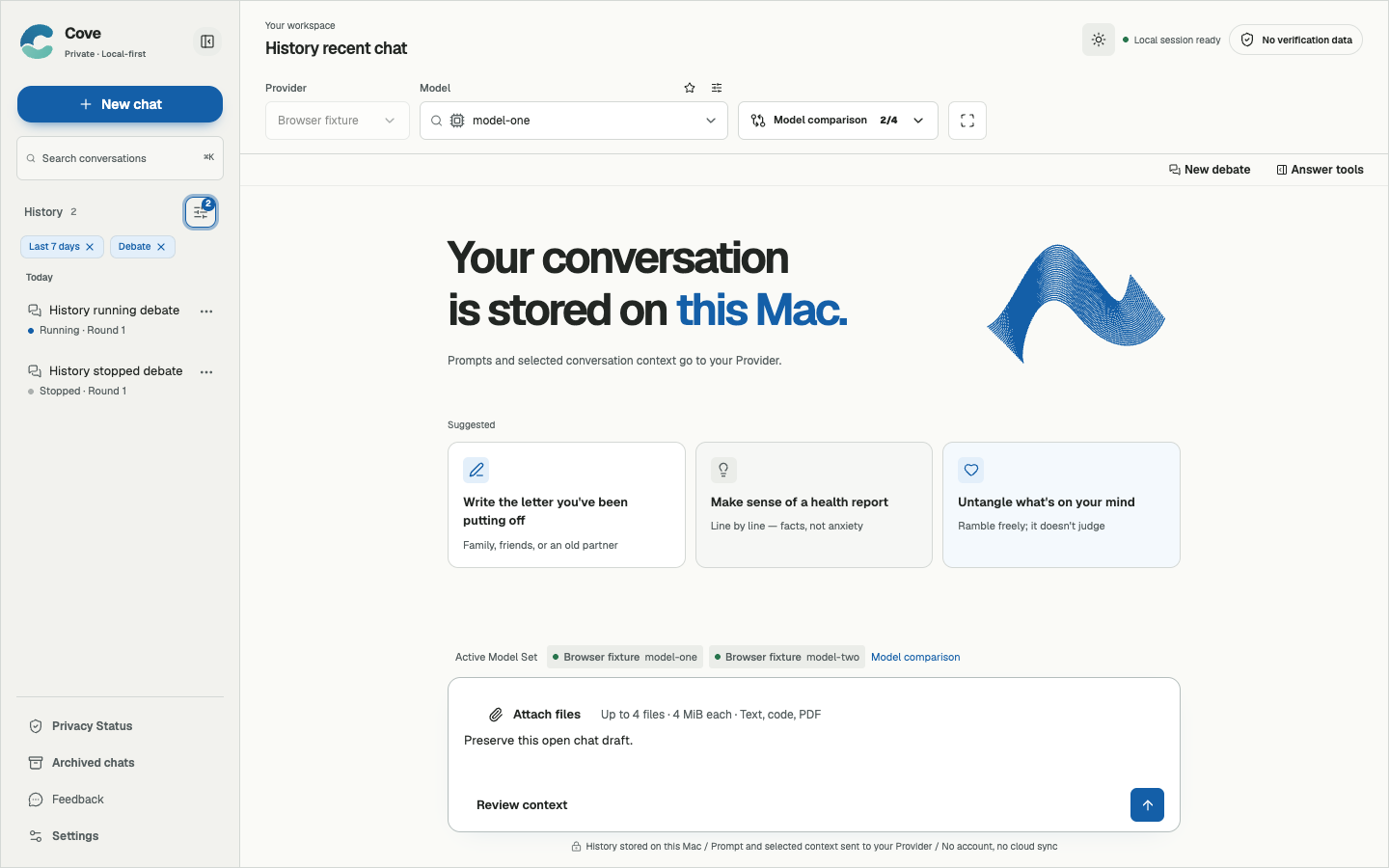
Combine activity and conversation-type filters with local search. See which debates are running, paused, or stopped, and return to the discussion you need.
Filter your local history.
Narrow conversations by activity period and type, then search within those filters. Preferences are remembered in your browser. Ordinary chat search includes saved messages; Debate search currently matches titles.
Time & type filtersDebate statusLocal search
Keep unsent work safe.
Cove asks before discarding text or attachments. Stay preserves the draft. If stopping a response or creating a conversation fails, your unsent work stays in place.
Actual history filters with sample content. Debate rows retain current state and round labels in active and archived views. Read the history guide ↗
Focus and timeline
More room to read. A way back to every idea.
Enter Focus to expand the reply area. Keep your place with a timeline that follows the conversation.
Let the reply take the stage.
Hide the sidebar, compact the header and input, and read long answers with model identity still visible. Exit Focus or press Escape to return to your previous layout. Drafts, attachments, and active responses stay with you.
Hover a timeline marker for a prompt and answer excerpt, move into its preview to save a bookmark, or click to jump to that turn. The active marker follows your reading position, in normal and Focus layouts.
Turn previewsClick to jumpBookmark controls
Bookmarks store message identifiers in this browser profile for the Local Service address. They are not part of database backups or conversation exports. Read the Focus guide ↗
Chat with your sources
Bring your files. Keep the context.
Ask about text, Markdown, code, and text-based PDFs. See the source text your models will receive before you send it.
Read before you send.
Attach up to four files, each up to 4 MiB. Preview the extracted text and inspect your Provider context locally. Original files stay on your Mac; your selected Providers receive the extracted text.
Local previewsText, code & PDFContext inspection
Return to the source.
Open citations at saved lines or pages, download an original file, and compare models against the same saved input. A citation helps you navigate the source; it does not independently verify an answer.
Four workspace skins, each with light and dark appearances. Familiar tools, with a little room for personality.
Continuum — a neutral canvas with blue accents. Actual interface, sample content.
Keep the important things close
Your history. At home on your Mac.
A little clarity about where your conversations live, and where your words go.
Kept on your Mac.
Conversation history and settings stay on your device. Provider keys use macOS Keychain by default. There is no Cove account or Cove cloud conversation store.
Local historyKeychain credentialsMarkdown & JSON exports
Your choice of provider.
Prompts and selected context go to the provider you choose. Each response records its provider and configuration, with verification evidence when supported.
Your model choicesProvider snapshotsAvailable verification evidence
Installed local chat, document search, and speech run on this Mac. When you choose a cloud provider, your prompt and selected context go to that provider. Search queries and page reads go to external services outside NearAI encrypted inference; model verification does not verify retrieved facts. Cove does not encrypt its local history database. Read the privacy model ↗
Download the betaGet the DMG from GitHub Releases. Developer ID signed and Apple notarized.
Make it at homeOpen the DMG and drag Cove to Applications. Launch it from there.
Bring your modelsInstall a local model in Settings > On this Mac > Discover, or configure your own provider and key. Choose a model and start a conversation.
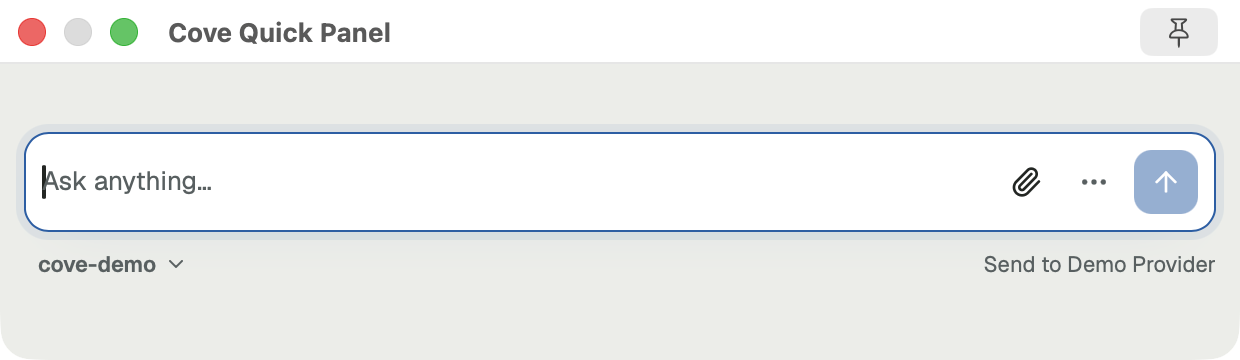
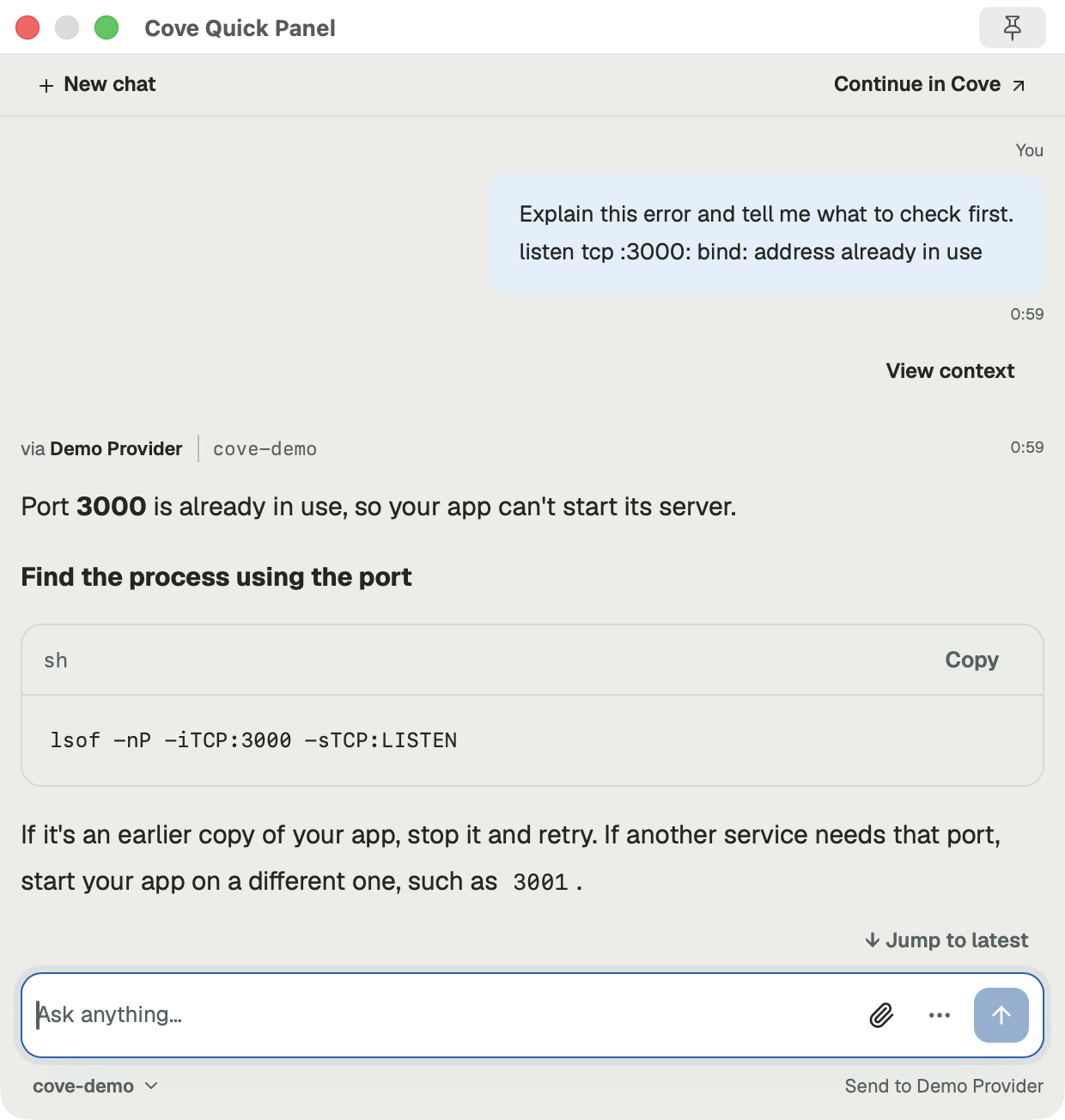
The beta supports Apple Silicon Macs running macOS 13 or later. Local inference and speech require macOS 13.3 or later. Intel Macs are not supported by this package. Open the Quick Panel or the full browser workspace from the Cove menu bar.
Do I need a Cove account?
No. Cove has no account or cloud conversation store. Install a local model without a Provider Key, or configure your own cloud provider. Provider pricing and availability depend on that service.
Are models running on my Mac?
You choose. Install integrated local chat, selected-document search, or English/Chinese speech in On this Mac > Discover. Installed models work offline. Only on this Mac suppresses Web research and rejects remote chat targets, including retries. Cloud providers still receive your prompt and selected context when chosen.
What can Cove verify?
Supported NearAI models can use browser-side encryption and hardware attestation. Evidence is shown per response and support varies by model. Ordinary HTTPS does not by itself prove confidential model execution. The NearAI preset currently uses its staging service.
Which sources can I attach?
Attach UTF-8 text, Markdown, code, text-based PDFs, or explicitly read public webpages. Files and webpages share a four-source limit, each up to 4 MiB. Extracted text and context have additional limits. Scanned-only PDFs require OCR first. Original bytes and source text are saved locally; selected Providers receive extracted text.
What changed in Beta 10?
Beta 10 adds the Quick Panel, resumable model and speech downloads, clearer local inference activity, and a similarity filter for local document search.
Can I return to an earlier beta?
Beta 10 and Beta 9 use SQLite schema 27. Builds before Beta 9 cannot reopen a schema 27 database. Quit Cove and keep a compatible data backup before upgrading if you need a rollback path. Keychain credentials are stored separately.
Can I change the interface language?
The interface currently uses English. Messages, conversation titles, and prompts support Unicode content, including Chinese.
How do I get beta updates?
In the Cove menu bar, open Check for Updates and choose Check Beta Releases… to look for newer betas, release candidates, or final versions. Choose Check Stable Releases… to check the stable channel. Both actions show available releases and link to downloads.
 Cove